
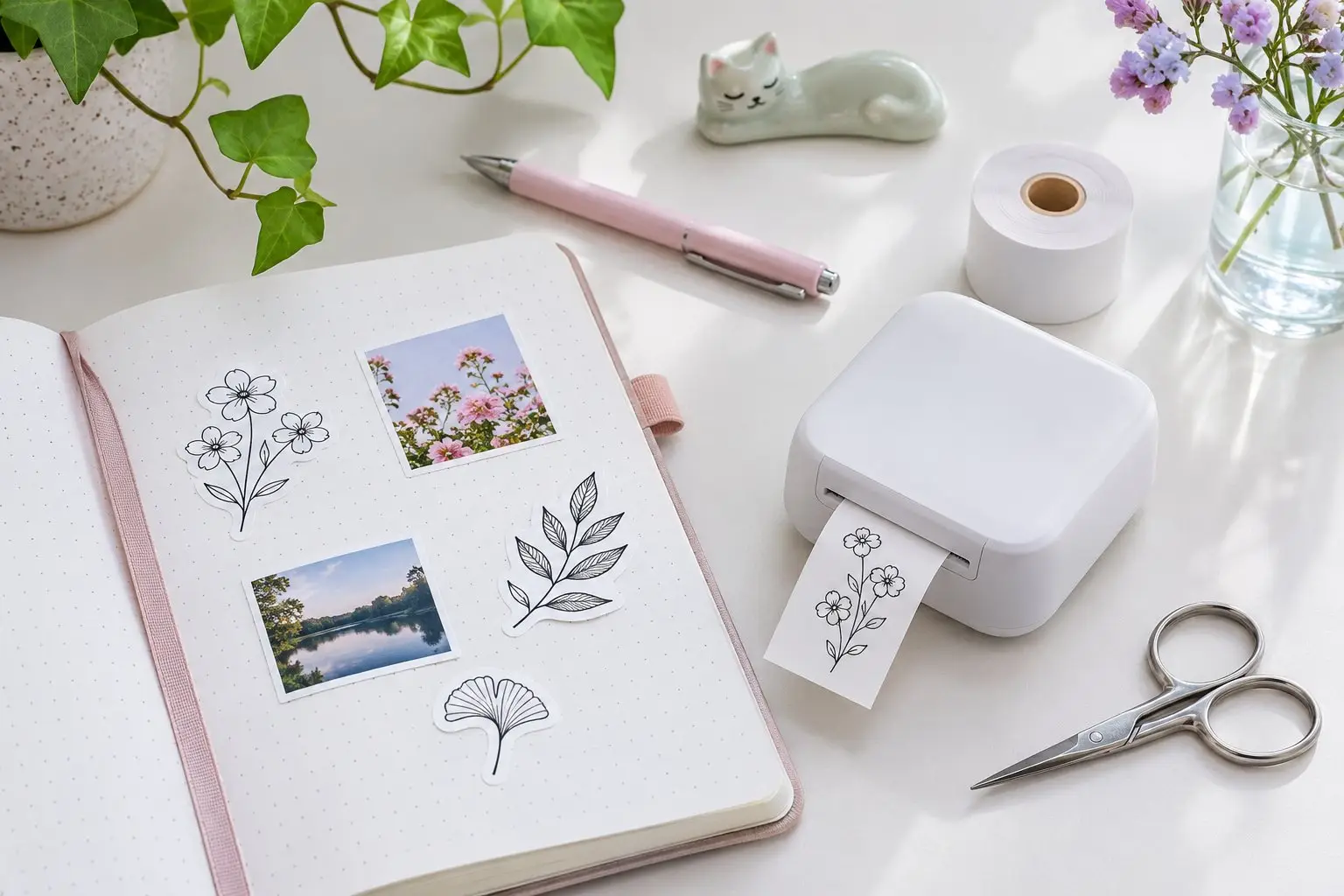
Quick answer
Start with the sticker you want to make — black line art, a color photo, a shaped illustration or a text label. The paper system matters as much as the printer.
- Monochrome decorations: Phomemo M02 Pro uses thermal rolls; it cannot reproduce full-color artwork.
- Pocket photo stickers: Canon IVY 2 makes small peel-and-stick color prints.
- Print and contour cut: Liene PixCut S1 combines color printing with cutting using its own media system.
Choose by use case
If you wantBlack line art, captions and small notes

Phomemo M02 Pro Mini Sticker Printer — Cyan
Monochrome decorationsResearch-based reviewA roll-based monochrome workflow for journal decorations.
If you wantSmall color photos while journaling away from a desk

Canon IVY 2 Mini Photo Printer — Pure White
Pocket photo stickersResearch-based reviewPocket-format peel-and-stick output without separate ink.
If you wantCustom color shapes without hand-cutting each one

Liene PixCut S1 Photo Sticker Printer and Cutter — Starter Kit
Print and contour cutResearch-based reviewBuilt-in cutting follows the design through a dedicated workflow.
If you wantArrange several designs on a full home-printed sheet

Epson EcoTank ET-2800 All-in-One Printer — White
Home sticker sheetsResearch-based reviewA refillable inkjet option if compatible media and separate cutting suit you.
If you wantConsistent headings, divider tabs and supply labels

Brother P-touch CUBE Plus Label Maker — Black
Headings and organizationResearch-based reviewTape-format labeling instead of photo or illustration sheets.
Sticker printer formats at a glance
Manufacturer-stated formats describe what each system accepts. Media width is not necessarily printable width, and we have not measured output quality.
| Printer | Output | Media format | Cutting and power |
|---|---|---|---|
| Phomemo M02 Pro | Monochrome direct thermal | 15 / 25 / 53 mm media options | Trim designs; rechargeable |
| Canon IVY 2 | Color ZINK | 2-by-3-inch adhesive photo sheets | Trim custom shapes; rechargeable |
| Liene PixCut S1 | Color dye-sublimation | 4-by-7-inch sticker stock | Integrated contour cutting; mains power |
| Epson ET-2800 | Color inkjet | Letter sheets; verify adhesive stock | Separate cutting; mains power |
| Brother CUBE Plus | Thermal-transfer tape labels | TZe tape up to 24 mm | Tape-label workflow; rechargeable |
These are alternative systems. Refills are not interchangeable, and a higher resolution number alone does not prove better real-world prints.
Product comparison
| Product | Best for | Watch out | Price & shop |
|---|---|---|---|
| Phomemo M02 Pro Mini Sticker Printer — Cyan (opens Amazon in a new tab) Monochrome decorationsResearch-based review | Monochrome decorations | It cannot reproduce full-color art. Thermal output can fade, and the current listing says some app features require a subscription. Check the exact adhesive refill and desired tools before buying. | |
| Canon IVY 2 Mini Photo Printer — Pure White (opens Amazon in a new tab) Pocket photo stickersResearch-based review | Pocket photo stickers | Compatible photo sheets remain an ongoing purchase even though there is no ink cartridge. It does not contour-cut artwork, and we have not compared its colors, sharpness or battery runtime against other printers. | |
| Liene PixCut S1 Photo Sticker Printer and Cutter — Starter Kit (opens Amazon in a new tab) Print and contour cutResearch-based review | Print and contour cut | This is a mains-powered desk purchase with its own media and ribbon system. Automatic cutting still needs suitable artwork and calibration; we have not tested edge accuracy, adhesive strength or app ease. | |
| Epson EcoTank ET-2800 All-in-One Printer — White (opens Amazon in a new tab) Home sticker sheetsResearch-based review | Home sticker sheets | Our check found a new marketplace offer rather than a featured Amazon offer, with delivery restricted for the international browser address. Verify seller, warranty and delivery. Sticker stock, scissors or a cutter are extra, and we have not feed-tested any vinyl in this machine. | |
| Brother P-touch CUBE Plus Label Maker — Black (opens Amazon in a new tab) Headings and organizationResearch-based review | Headings and organization | It does not turn phone photos into full-color picture stickers. Tape width limits the layout, and a decorative cassette can become an extra recurring cost. Bluetooth is for supported mobile devices; use the documented USB connection for computers. |
How we chose
- Compared 5 research-based picks from current product listings.
- Product listings checked on November 5, 2026.
- Five distinct products solving different journal-making needs, each with a verified Amazon.com ASIN and matching image.
- Monochrome versus color output and compatible media format.
- Hands-on testing: none — all picks are research-based
- Product listings checked
- Hands-on testing
- None of the 5 picks — all are research-based
- Labels explained
- How we test and label products
This research-based comparison was checked on November 5, 2026 using manufacturer product pages, support information and five exact Amazon.com listings with matching product images. Four listings showed in-stock ordering controls. The ET-2800 showed a new marketplace offer shipping from the United States; that seller did not deliver to the international address used in our browser session. Delivery, seller and warranty eligibility need checking for your address. We compared output type, media format, cutting workflow, connectivity, power and refill requirements. We did not use these printers or test their apps, print quality, adhesion or longevity. Suitability judgments follow the documented workflows rather than measured performance.
What we compared
- Five distinct products solving different journal-making needs, each with a verified Amazon.com ASIN and matching image.
- Monochrome versus color output and compatible media format.
- Whether designs need scissors, a separate cutter or built-in contour cutting.
- Manufacturer-documented phone or computer connection and battery or mains power.
- Required refills, paid app features where disclosed and limits on permanence claims.
What we did not test
- No comparative image sharpness, color accuracy, print speed or battery-runtime tests.
- No app pairing, subscription checkout, privacy, adhesive, waterproofing or fade tests.
- No physical trial of third-party sticker paper in the ET-2800.
Testing status by pick
- Phomemo M02 Pro Mini Sticker Printer — CyanResearch-based review
- Canon IVY 2 Mini Photo Printer — Pure WhiteResearch-based review
- Liene PixCut S1 Photo Sticker Printer and Cutter — Starter KitResearch-based review
- Epson EcoTank ET-2800 All-in-One Printer — WhiteResearch-based review
- Brother P-touch CUBE Plus Label Maker — BlackResearch-based review
Sources
- M02 Pro specifications and setup — Phomemo
- Thermal paper storage and fading — Phomemo
- IVY 2 media, connection and power specifications — Canon USA
- PixCut S1 media and power specifications — Liene
- PixCut setup, image import and cutting calibration — Liene
- EcoTank ET-2800 product specifications — Epson USA
- ET-2800 paper sizes and handling limits — Epson
- ET-2800 user guide, including USB and Wi-Fi connections — Epson
- PT-P710BT model description and specification tables — Brother USA
- Brother Bluetooth versus USB computer support — Brother USA
- Choosing a printer and matching sticker media — Avery
- M02 Pro Cyan exact listing and app subscription disclosure — Amazon.com
- IVY 2 Pure White exact listing — Amazon.com
- PixCut S1 starter kit exact listing — Amazon.com
- ET-2800 White exact listing and new seller offer — Amazon.com
- CUBE Plus Black exact listing — Amazon.com
Product details and drawbacks
Phomemo M02 Pro Mini Sticker Printer — Cyan (opens Amazon in a new tab)
A phone-connected thermal printer for small monochrome designs.

Why it fits this guide
The M02 Pro offers a roll-based alternative to arranging a whole sheet. Its documented 15, 25 and 53 mm paper options give different formats for captions and decorative strips. Those are media widths, not a promise of edge-to-edge printing. Pair simple shapes with your own lettering or coloring after a small test.
Honest drawback
It cannot reproduce full-color art. Thermal output can fade, and the current listing says some app features require a subscription. Check the exact adhesive refill and desired tools before buying.
Specifications
- Direct thermal; monochrome output.
- 300 dpi; 15, 25 or 53 mm compatible media formats per Phomemo.
- Bluetooth and Phomemo phone app; USB-C charging and rechargeable battery.
Best forJournalers making line-art accents and captions
Pros
- No separate ink cartridges.
- Roll format suits short journal elements.
Cons
- Not a color photo printer.
- Paper longevity and app-feature costs need checking.
Canon IVY 2 Mini Photo Printer — Pure White (opens Amazon in a new tab)
A pocket-format color photo printer using peel-and-stick ZINK paper.

Why it fits this guide
Choose it when your journal is built around phone photos rather than pages of labels. Canon specifies 2-by-3-inch adhesive photo media, Bluetooth and its Mini Print app. The rectangular print can go straight into a spread or be trimmed. The rechargeable format is more convenient to pack than a mains-powered desktop machine.
Honest drawback
Compatible photo sheets remain an ongoing purchase even though there is no ink cartridge. It does not contour-cut artwork, and we have not compared its colors, sharpness or battery runtime against other printers.
Specifications
- Color ZINK output on compatible 2-by-3-inch sticky-back media.
- Bluetooth phone workflow through Canon Mini Print.
- Rechargeable lithium-ion battery.
Best forTravel diaries and small color memory photos
Pros
- Small color prints with adhesive backing.
- No separate ink refill to pack.
Cons
- Restricted media format.
- Shaped stickers require trimming or supported pre-cut media.
Liene PixCut S1 Photo Sticker Printer and Cutter — Starter Kit (opens Amazon in a new tab)
A desktop color sticker printer with an integrated cutter.

Why it fits this guide
PixCut S1 adds a different capability from a pocket photo printer — design cutting. Liene documents image import and cutting calibration, making it relevant for your own character art or coordinated journal sheets. The starter listing includes both photo and sticker supplies; buy subsequent refills for the output you intend to make.
Honest drawback
This is a mains-powered desk purchase with its own media and ribbon system. Automatic cutting still needs suitable artwork and calibration; we have not tested edge accuracy, adhesive strength or app ease.
Specifications
- 300 dpi dye-sublimation color printing and integrated cutting.
- 4-by-7-inch sticker sheets; stated printable area 3.9 by 6.7 inches.
- Bluetooth; power adapter required, no battery.
Best forMakers who want custom shaped color stickers
Pros
- Printing and shaped cutting in one workflow.
- Supports imported personal designs.
Cons
- Model-specific media and ribbon refills.
- Needs desk space and mains power.
Epson EcoTank ET-2800 All-in-One Printer — White (opens Amazon in a new tab)
A refillable color inkjet for full-sheet layouts, with separate compatible stock and cutting.

Why it fits this guide
The ET-2800 makes sense when a household also needs ordinary printing, scanning and copying. A sheet layout lets you combine several motifs rather than consume one small photo sheet for every design. Treat sticker printing as a media-dependent project — Epson's general paper specifications do not certify every adhesive sheet or printable vinyl.
Honest drawback
Our check found a new marketplace offer rather than a featured Amazon offer, with delivery restricted for the international browser address. Verify seller, warranty and delivery. Sticker stock, scissors or a cutter are extra, and we have not feed-tested any vinyl in this machine.
Specifications
- Color inkjet with refillable tanks; print, copy and scan.
- Letter-size paper support; Wi-Fi and USB connectivity.
- Mains powered; no built-in sticker contour cutter.
Best forRegular home printing plus occasional DIY sticker sheets
Pros
- Useful beyond journaling projects.
- Full-sheet layouts allow several designs together.
Cons
- Sticker-paper suitability must be checked separately.
- Requires separate cutting and routine inkjet maintenance.
Brother P-touch CUBE Plus Label Maker — Black (opens Amazon in a new tab)
A thermal-transfer tape label maker for consistent headings and practical labels.

Why it fits this guide
CUBE Plus is the focused choice when most of your stickers are words. Brother specifies TZe tapes up to 24 mm wide, phone apps and USB computer printing. Different tape finishes can coordinate with a notebook or supply system; the chosen cassette determines the text and background combination.
Honest drawback
It does not turn phone photos into full-color picture stickers. Tape width limits the layout, and a decorative cassette can become an extra recurring cost. Bluetooth is for supported mobile devices; use the documented USB connection for computers.
Specifications
- Thermal-transfer printing on compatible TZe tapes up to 24 mm.
- Bluetooth mobile apps; USB with P-touch Editor on supported computers.
- Built-in rechargeable lithium-ion battery.
Best forText labels for journals, dividers and supply storage
Pros
- Dedicated label workflow.
- Useful for journal headings and stationery storage.
Cons
- Tape-format output rather than photo sheets.
- Cassette selection controls the color combination.
Corrections
Spotted an error or outdated detail? Read how we handle corrections.
Related guides
Best Reusable Sticker Books for Sticker Collectors
Compare reusable sticker books and albums for collecting, with tips on release-paper pages, sizes, binders vs bound books and how to keep stickers sticky.
Best Stickers for Journaling: 10 Cute Sets for Decorating Your Pages
Find the best stickers for journaling, from kawaii animals and washi paper to florals, PET stickers and vintage collage sets for cute journal pages.

Best Travel Journals and Travel Notebooks
Compare 10 travel journal and travel notebook picks, from pocket and refillable notebooks to guided trip planners and weatherproof field notebooks.
Junk Journal Supplies for Beginners: The Starter List
A beginner shopping list of junk journal supplies, from base journals and ephemera packs to glue, washi and stamps, and when a kit makes sense.
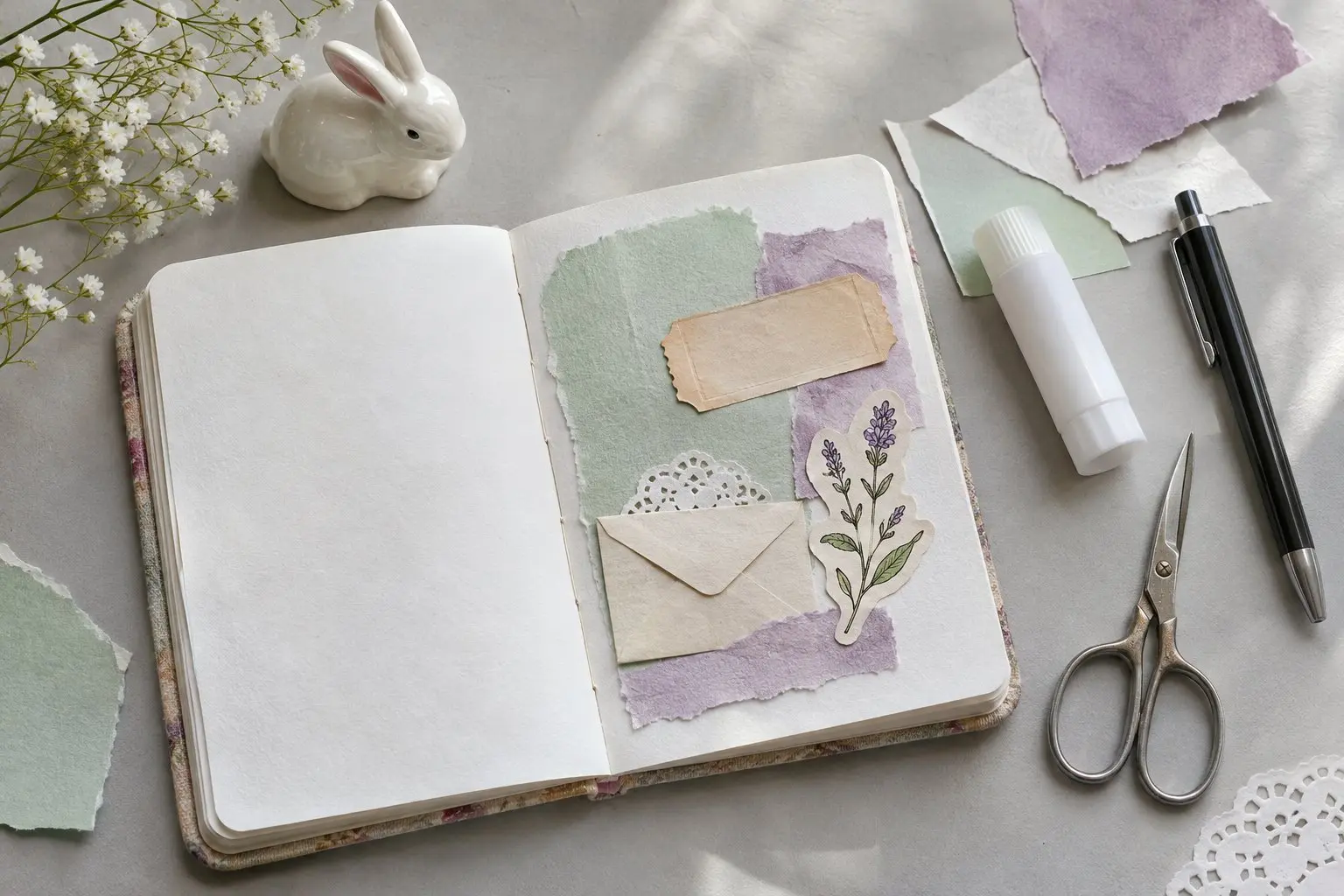
What Is a Junk Journal? A Beginner's Guide to Starting One
What a junk journal is, how it differs from scrapbooking and bullet journaling, and a simple step-by-step way to start your first one today.
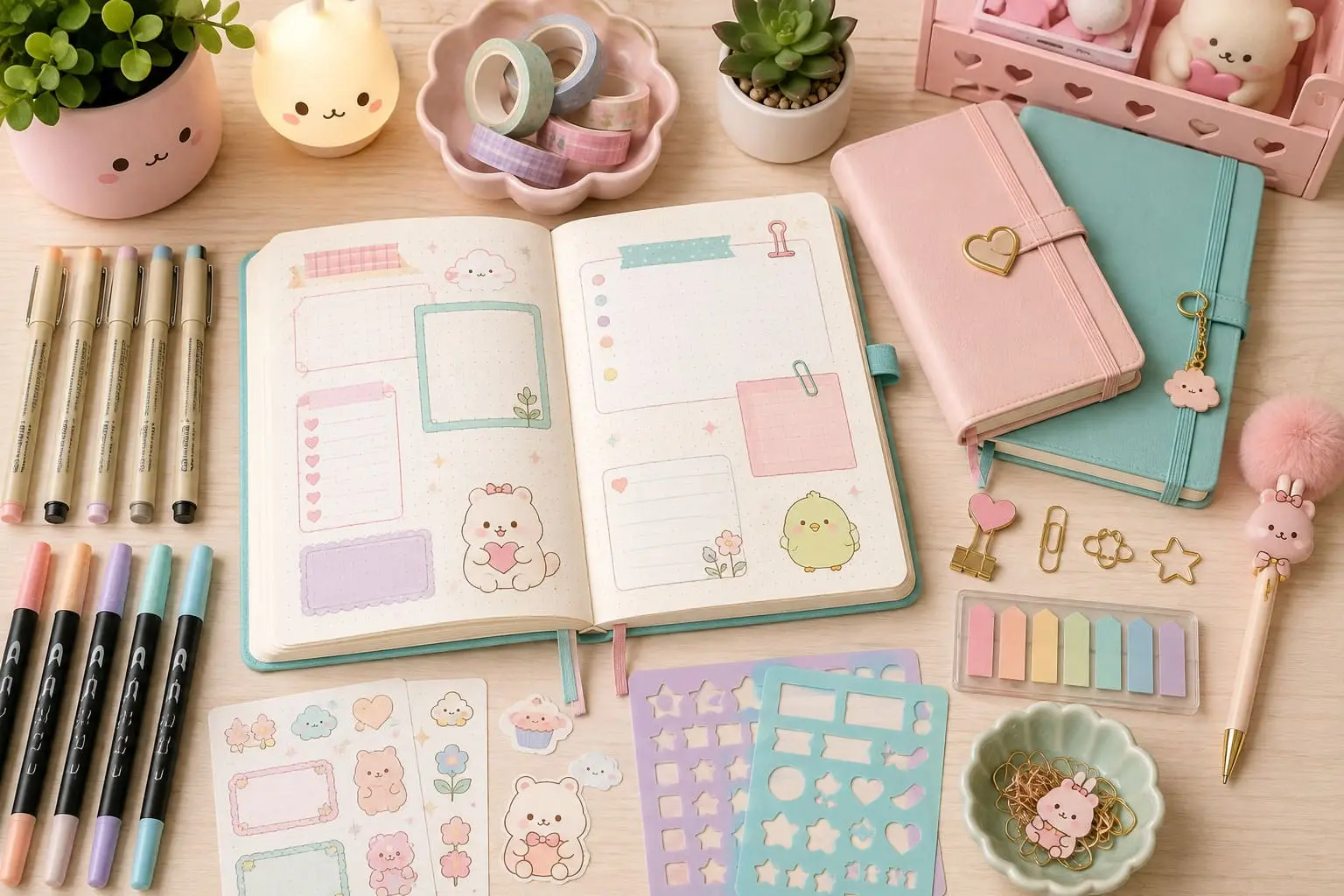
Best Journaling Kits for Beginners: 10 Complete Starter Sets
The best journaling kits for beginners, from dot-grid bullet journal sets to vintage junk-journal kits. Compare notebooks, pens, stencils and supplies.


Latest guides
Gift Ideas for People Who Love Coloring
Thoughtful gift ideas for adults who love coloring, from marker sets and coloring books to lap desks, lamps and storage, sorted by budget and style.
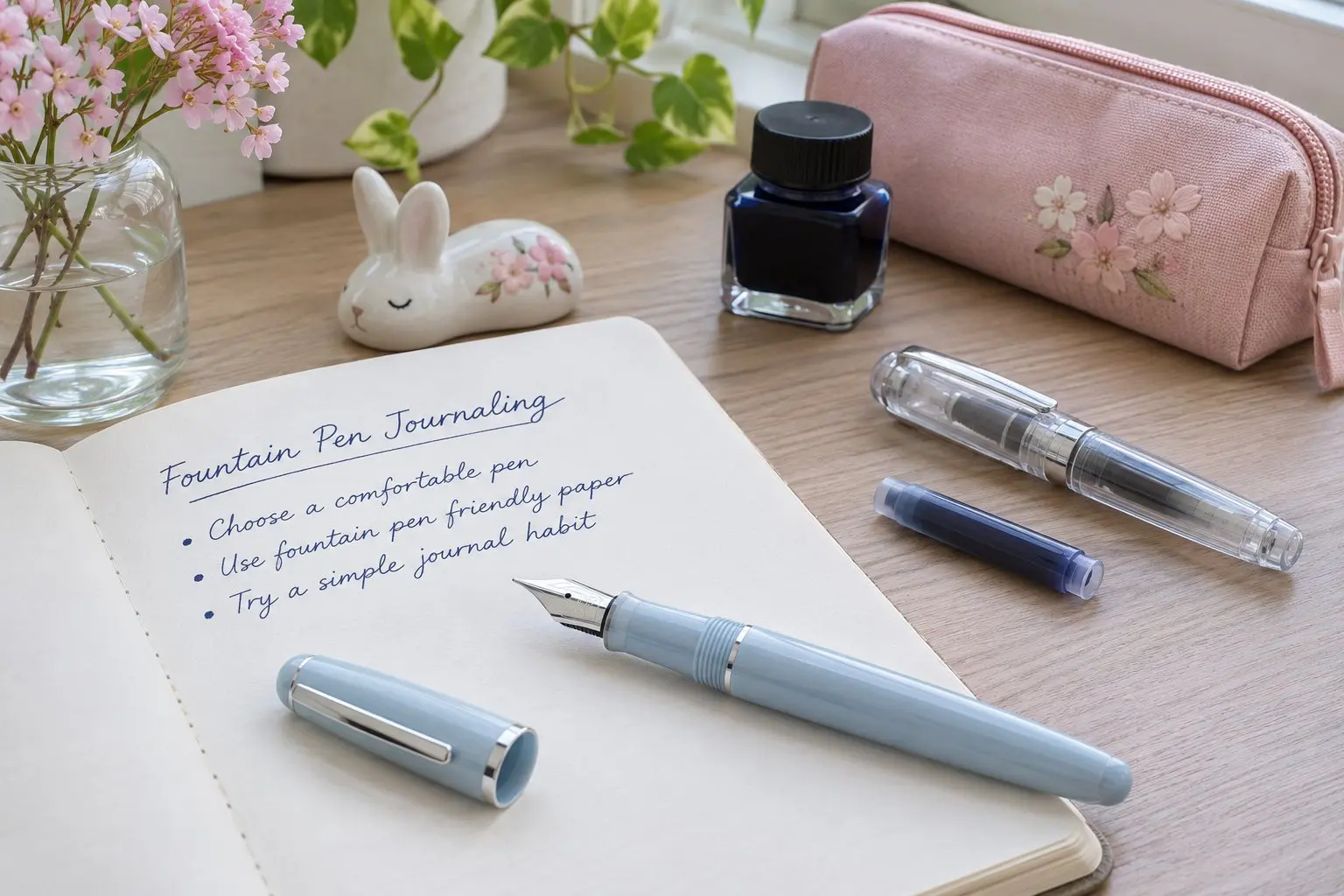
Best Fountain Pens for Beginners
Compare beginner-friendly fountain pens for journaling and everyday writing, with tips on nib sizes, cartridges vs converters, ink and paper.
Best Cute Pens and Kawaii Gel Pens
Cute and kawaii pens for notes and journals, from a bunny gel pen to pastel and multi-color pens, with clear ink, tip-size and refill comparisons.
Best Paper for Colored Pencils
Find the best paper for colored pencils, comparing tooth, weight and surface for layering and blending, with picks for beginners and detail art.
Best Travel Watercolor Sets and Pocket Palettes
Compare travel watercolor sets and pocket palettes for sketching on the go, with tips on pan count, water brushes, size and travel sketchbooks.
Best Watercolor Brush Pens and Watercolor Markers
Compare watercolor brush pens and markers that blend with water, with tips on paper, water brushes and using them safely in your coloring books.


